![Simpled Logo Size-1.jpg]](https://learn.simpled.uk/hs-fs/hubfs/Simpled%20Logo%20Size-1.jpg?height=50&name=Simpled%20Logo%20Size-1.jpg)
Compatible RFID Cards and Fobs
Simpled locks use MIFARE RFID technology operating at 13.56 MHz.
Compatible credentials include:
-
RFID Cards
-
Proxy Fobs
-
Phone Tag Stickers
All credentials must use MIFARE 13.56 MHz RFID to work with the lock.
Other RFID frequencies will not be recognised.
Before You Start
Before a card, fob, or sticker can unlock the door, it must be programmed into the lock using the app.
When adding a credential, you can choose whether it should be:
-
Permanent – access available at all times
-
Time-limited – access only within a defined schedule
How to Add a Fob or RFID Card
-
Open the smart lock app
-
Select the lock
-
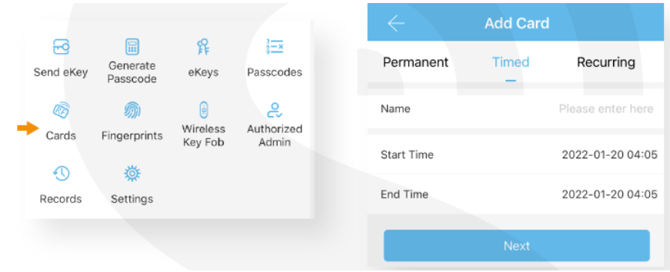
Go to Cards
-
Tap Add
-
When prompted, hold the RFID card, fob, or sticker near the lock reader
-
Wait for confirmation that the credential has been added
Once programmed, the credential can be used to unlock the door.
Testing the Fob
After programming:
-
Hold the fob or card near the lock reader
-
The lock should recognise the credential
-
The door should unlock