![Simpled Logo Size-1.jpg]](https://learn.simpled.uk/hs-fs/hubfs/Simpled%20Logo%20Size-1.jpg?height=50&name=Simpled%20Logo%20Size-1.jpg)
factory reset will:
- Remove all users and settings
- Restore the lock to factory default
- Require you to set up the lock again from scratch
⚠️ Only perform a reset if required. All saved data will be erased.
Step-by-Step Instructions
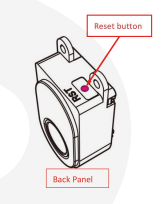
Step 1: Access the Reset Button
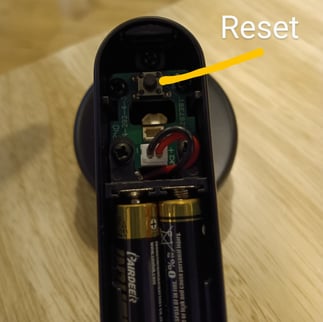
- Remove the battery cover on the indoor panel
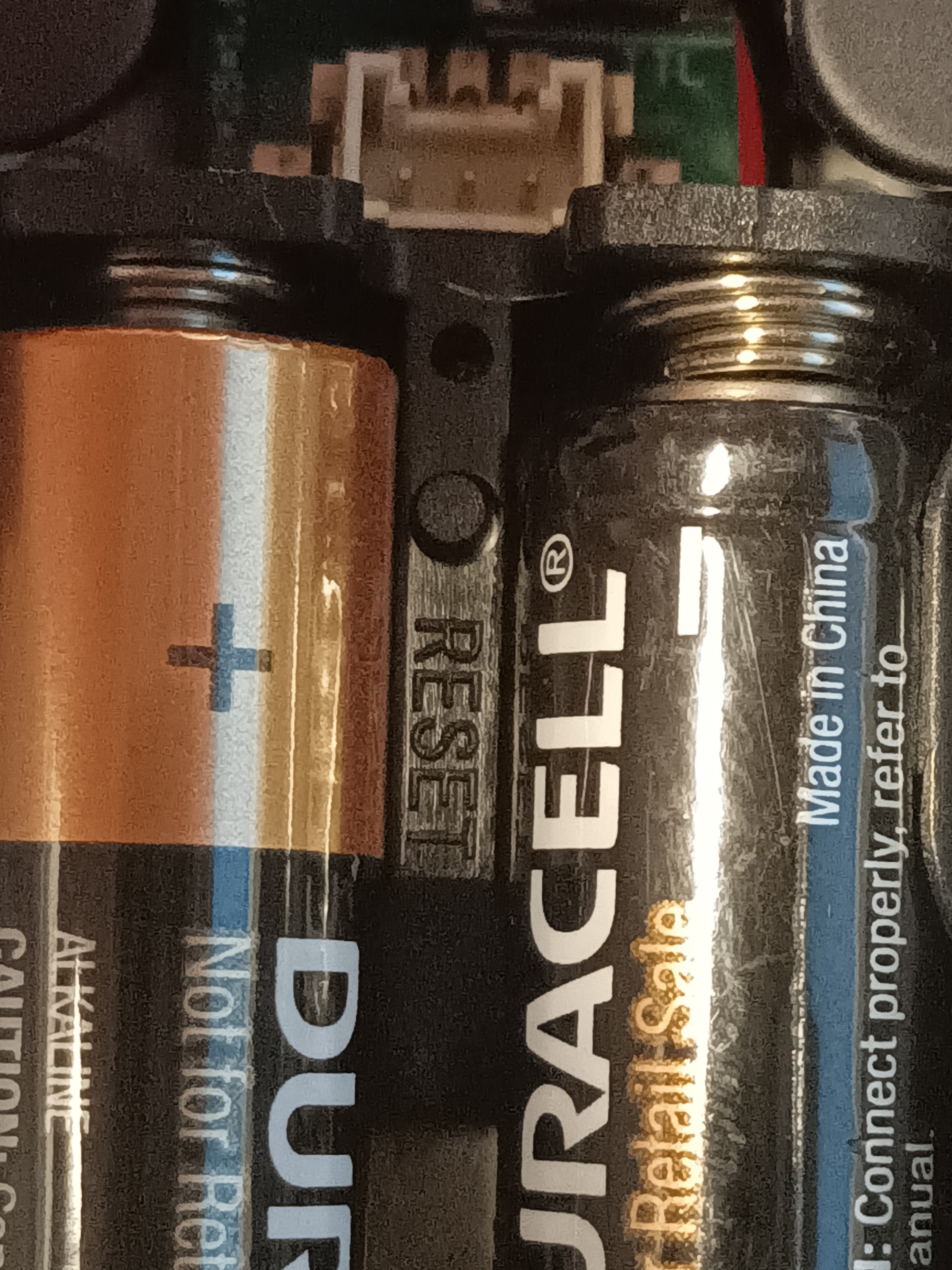
- Locate the white connector cable
- Gently move the cable to one side
- Locate the reset button between the batteries
Step 2: Perform the Reset
- Press and hold the reset button using a pen or similar object for 2 seconds
- Wait for the voice prompt:
→ “Please add administrator.”
✅ This confirms the reset is complete
Step 3: Set Administrator Code
- On the keypad, enter:
0 0 0 #
Step 4: Add the Lock to the App
- Open the app
- Tap Add Lock → All Locks
- Lightly touch the keypad to activate Bluetooth
Step 5: Complete Pairing
- Wait for the lock to appear in the list
- It should appear in black text (not greyed out)
- Select the lock
- Tap the Add (+) button
Step 6: Test the Lock
- Once added, tap the blue padlock icon in the app
- The lock should unlock successfully
If It Does Not Work
If the lock does not reset or unlock:
- Repeat the reset steps carefully
- Ensure the reset button is held for the full 2 seconds
- Confirm the keypad is activated when adding the lock
📩 If the issue continues:
- Record a short video showing the problem
- Send it to: support@simpled.tech
SF
Leverline
DFF Inside reset button